The Best Free Spotify Canvas Maker (No Sign-Up, No Watermark)
Most "free" Spotify Canvas makers are not free. They want an account, or a distribution subscription, or they stamp a logo on your loop, or the export is the one thing you have to pay for. The TrackGleam Spotify Canvas Maker asks for none of that: no sign-up, no upload, no watermark on any tier, and it writes a real 1080×1920 MP4 in your browser.
What it does that the others do not is the part worth reading for: it builds a seamless continuous loop whose length is cut to a whole number of your track’s bars, so the motion carries the record’s pulse instead of drifting against it — and it measures its own seam and its own exported file, then shows you the numbers.
This page is about choosing a maker. If what you need is the published spec, the reasons uploads get rejected, and the upload path inside Spotify for Artists, that lives in How to make a Spotify Canvas.
A real Canvas made with it
This is an unedited export from the maker, not a mock-up. It is 1080×1920, 7.67 seconds, H.264 in a real MP4 container, one video track and no audio track — which is what the Canvas spec asks for, and comfortably under the 8.000-second edge that trips uploads.
Press play and you get what a listener gets: the loop runs silently and your song is the audio. The track here is “Put a Gleam On It”, mastered with GleamAI. The loop is 7.67 seconds, so it comes round about 23 times over the song — watch the join each time it does. There is no fade, no ghosted frame and no jump: the last frame runs into the first because the look is built on a cyclic clock rather than cross-faded at the ends.
The Canvas file carries no audio track of its own — that is the spec, and it is why a Canvas is silent. The music here is a separate track playing alongside it, the way Spotify pairs the two.
What "free" usually costs you
Search "free Spotify Canvas maker" and nearly everything on the first page is free with a condition attached. Four conditions are worth checking before you spend an hour in a tool:
- An account. Free to use — once you have signed up, confirmed an email, and in some cases subscribed to something else entirely.
- A watermark. The preview is clean and the export carries a logo, with removal as the paid tier. On a Canvas — a small vertical frame looping forever next to your name — a watermark is not a minor cosmetic issue.
- An upload. Your artwork, and sometimes your unreleased track, goes to somebody else’s server so that server can do the rendering.
- A paywalled export. Everything is free right up to the Download button, which was the only step that mattered.
The TrackGleam maker has none of the four. There is no account, nothing leaves your device, no version of the file carries a mark, and the export is the free part.
It is worth being equally clear about where money does appear, because a page that claims nothing is ever paid for is its own kind of dishonest: TrackGleam sells AI mastering for your audio, and a mastering purchase also unlocks a few extra Canvas looks. The maker itself, and every file it writes, stays free.
TrackGleam vs DistroKid’s Canvas Generator
DistroKid’s Spotify Canvas Generator is the best-known free option, so it is the fair comparison to make. It launched in 2022 and works as a stock-footage picker: search a library of free-to-use clips, crop the frame and the duration with sliders, download the result (Music Ally, September 2022).
Its condition is the first one on the list above. The generator’s own page reads "Create unlimited Canvas videos for your Spotify releases. Free for DistroKid members", above Sign up and Sign in buttons (distrokid.com/canvas, checked 3 September 2026). It is a members’ tool inside a paid distribution account rather than a public one.
| TrackGleam Canvas Maker | DistroKid Canvas Generator | |
|---|---|---|
| Account required | No — open the page and use it | Yes — free for DistroKid members |
| Where it renders | Your browser; nothing uploaded | On their service, in your account |
| Watermark | None, on any tier | None reported |
| Source material | Generated looks, stock video, stock photos, or your own artwork | Stock video library |
| Loop length | Cut to whole bars of your track’s tempo | Chosen by hand on a duration slider |
| Seam handling | Periodic by construction, and the seam is measured | Trim points chosen by eye |
| Spec check on the export | The finished file is parsed and reported | Not published |
| Flash-safety readout | Yes, measured per export | Not published |
DistroKid details taken from its own Canvas page and contemporary launch coverage, checked 3 September 2026. "Not published" means we could not find the claim documented, not that the feature is absent. Products change — re-check before relying on this. TrackGleam has no affiliate or commercial relationship with DistroKid, and this compares one tool inside it, not distribution.
The short version: if you already pay for DistroKid and you want a stock clip cropped to length, their generator is right there and it is fine. If you are not a member — or you want a loop built around your track rather than a clip trimmed by eye — you should not have to join anything to get one.
Continuous loops that actually close
"Continuous" is the property people search for most, and the one most tools quietly fail. A Canvas repeats for as long as somebody stays on your track. A join you would never notice on the first pass becomes the only thing you can see by the fifth.
The usual fix is a cross-fade — blend the end of the clip back over its start. It works, and it is also why so many Canvases have one soft, ghosted moment every time round. The seam has not been removed, it has been blurred.
Every generated look in the maker is periodic by construction. Each moving element runs on a cyclic clock whose period divides the loop exactly, so the frame after the last frame is the first frame. There is nothing to hide because there is no discontinuity to begin with: no cross-fade, no ghosting, no soft spot once a loop.
You are not asked to take that on trust, either. The page measures the seam and prints the score it got, so if a setting you chose hurts it, you can watch the number move.
Spotify names three loop shapes and the maker offers all three for its generated looks: a continuous seamless loop, a hard cut that reads as a deliberate edit, and a rebound that travels out and comes back. Stock video is set to hard cut, which is the honest shape for footage — real motion played backwards looks like real motion played backwards.
The flagship: loops cut to your track’s bars
This is the feature the tool was built around, and almost nothing else does it.
When you pick a Canvas length in seconds, you are picking a number that has nothing to do with your song. At 120 BPM one 4/4 bar lasts 2 seconds, so a 5-second loop is two and a half bars: the motion restarts halfway through a bar, landing in a different place against the music every single time round. It reads as a video that happens to be playing near a song.
Cut the loop to a whole number of bars and the restart lands where the music restarts. At 140 BPM a bar is about 1.71 s, so two bars is 3.43 s and four bars is 6.86 s — both inside the 3–8 second window, and neither is a round number of seconds, which is exactly why hand-picked durations never find them. For 4/4 the arithmetic is bars × 240 ÷ BPM seconds.
Drop your track into the page and it reads the tempo on your device, fits whole bars into the legal window, and tells you which bar counts fit and which do not rather than silently rounding to something that does. Or type the BPM in yourself. The audio is decoded locally and discarded — it is never uploaded, and you do not need the song at all if you would rather just type a number.
Being precise about what this buys you
Plenty of tools advertise "beat-synced" Canvases and mean something they cannot deliver, so here is the boundary, stated honestly. Spotify loops the Canvas on its own clock. It will not start on your downbeat, and nothing you can put inside the file will make it — Spotify does not expose playback position to the video.
What bar-locking fixes is the internal rhythm. The pulse inside the loop is the pulse of the record, so however the two happen to line up on any given play, the motion is moving at the music’s rate rather than at a rate borrowed from a slider. That is the difference between a visual that belongs to the song and one that is merely next to it — a real, visible difference, which is precisely why it is worth not overselling as something it is not.
The looks
Seven free looks ship with the maker, and twelve more looks come with GleamAI. Each one is a live renderer rather than a stock clip, so it is drawn at full resolution for your loop length, in your colours, at your energy setting — nobody else’s Canvas looks like yours. These are real frames, exported from the tool:




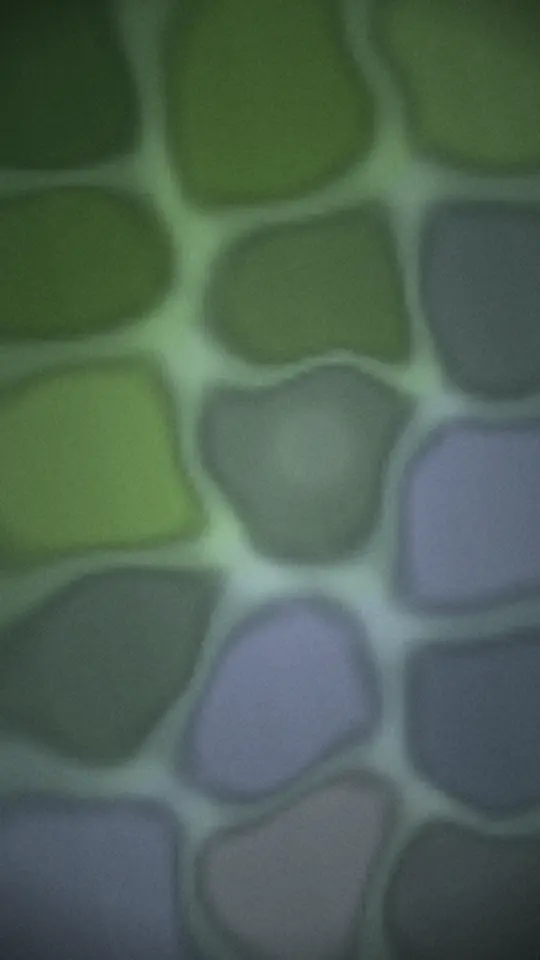
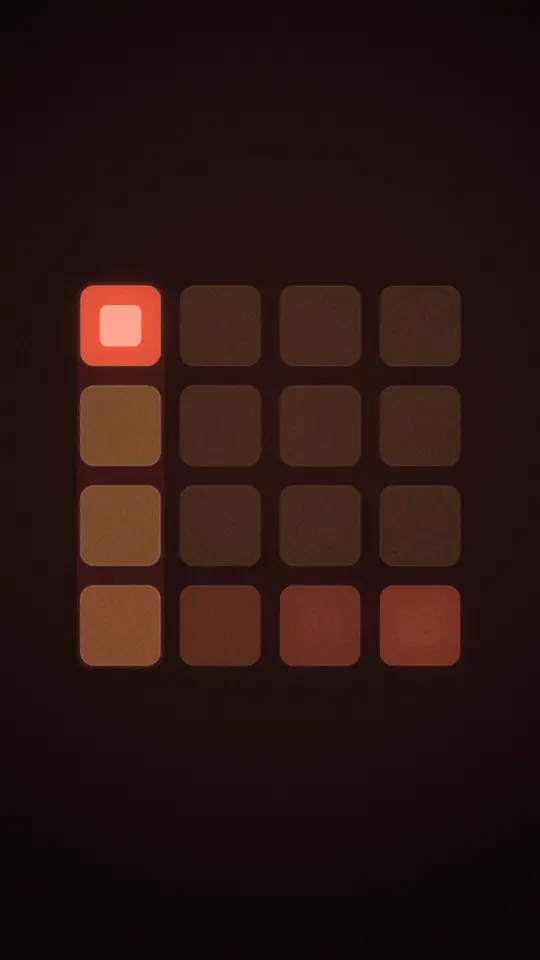



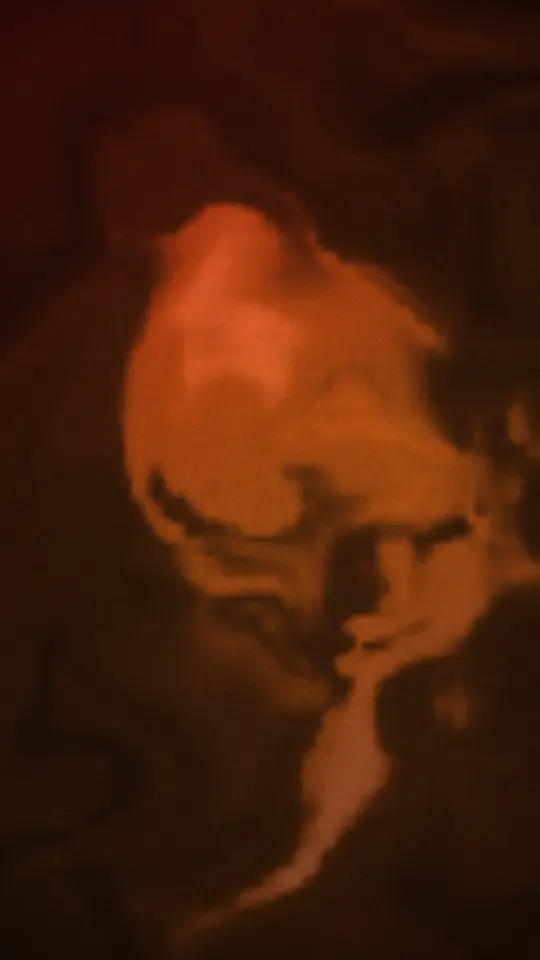
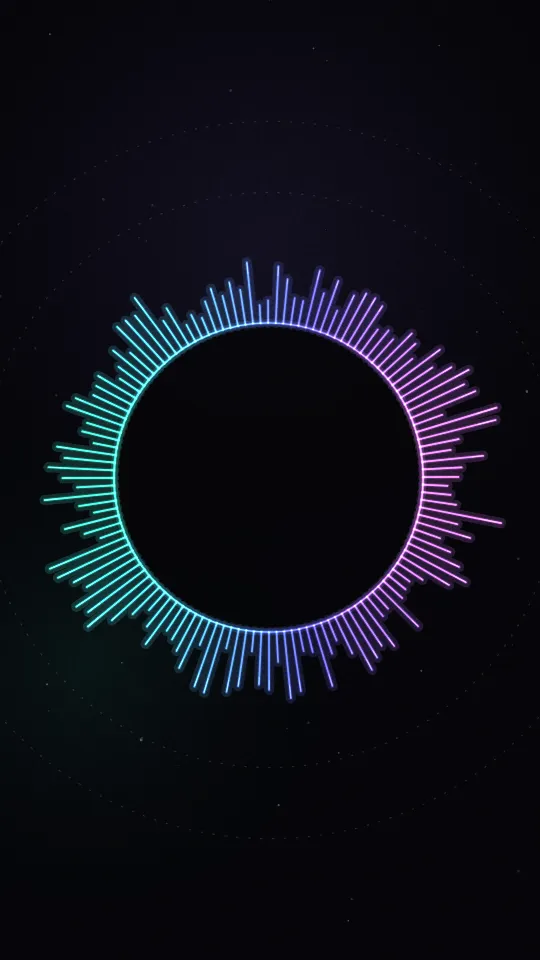
Every look runs through six colour themes, an energy control, optional film grain, paper and foil surface textures, and a parallax setting — so the grid above is a sample of the range rather than the range itself. Step Grid and Halftone are built to make the beat legible at thumbnail size, which is the size a Canvas is actually watched at.
The GleamAI looks unlock with any GleamAI mastering purchase — a single credit, a day pass, lifetime, or a Producer plan. See what that costs →
Or use your own artwork, a stock photo, or stock video
A generated look is not the only route. The same engine will take:
- Your own image. Cover art, a photo, a still from a shoot — dropped in and given motion, grain and texture instead of sitting there as a static frame.
- Stock photos. Search a free-to-use library from inside the page, then treat the result the same way as your own image.
- Stock video. Search free-to-use clips, then pick your loop — drag a window along the clip to choose exactly which seconds become the Canvas, with the preview playing that window live as you drag.
Searching a stock library sends your search words and nothing else. Your own images and your own audio never leave the device.
It writes a file Spotify accepts
A Canvas maker that produces a beautiful loop in the wrong container has wasted your afternoon. This is the unglamorous part, and it matters most:
- A real MP4. H.264 video in an actual MP4 container — not a WebM wearing an
.mp4name, which is the single most common upload rejection. - Full 1080×1920, or 720×1280. Genuinely vertical pixels, so there is no rotation flag for an uploader to misread.
- No audio track. Not a muted one — none at all.
- Never above 7.9 seconds. The 8.000-second edge that artists keep reporting simply cannot happen.
- The finished file is read back. Not your settings echoed at you — the actual exported bytes, parsed by the same engine behind our Spotify Canvas checker. The pass badge appears only if that parse earns it.
- A flash-safety reading. Rapid flashing is both a Spotify guideline and a real accessibility risk. The page measures flashes per second on every export and warns above the documented threshold.
Two honest limits, stated in the tool as well as here. Firefox cannot write H.264 MP4 from a canvas, so on Firefox the page says so at load and offers a still JPG instead — which Spotify also accepts — rather than handing you a mislabelled file. And a green result means the file meets Spotify’s published spec; Spotify also reviews content and does not publish everything it enforces, so no tool can promise acceptance.
Already have a file from somewhere else? Run it through the Canvas checker — it reads the bytes in your browser and tells you which rows fail, and why.
Nothing is uploaded
Every part of this runs on your machine: tempo detection, rendering, encoding, and the spec check on the result. Your track and your artwork are not sent anywhere — which matters most in the case this tool is usually used for, an unreleased song with a release date that has not happened yet.
The exceptions are worth stating plainly rather than burying: searching a stock library sends your search words, and if you own GleamAI the page checks your entitlement when it loads. Neither involves your audio or your images.
Make one in about a minute
- Open the Spotify Canvas Maker. There is no sign-up step.
- Drop your track in to lock the loop to its bars — or type the BPM if you would rather not.
- Pick a look, a theme and an energy level. Or bring your own image, a stock photo, or a stock clip and choose your loop window.
- Choose 1080×1920 and press Create. It renders and encodes on your device.
- Check the spec rows, then download the MP4.
- Add it per track in Spotify for Artists — the exact path is in our Canvas spec guide.
Free · no account · nothing uploaded
While you are here: does the track sound release-ready?
A Canvas puts your song in front of people who are deciding whether to keep listening, so it is worth making sure the audio underneath it holds up next to everything else on the playlist. The most common reason an independent release sounds "smaller" than a commercial one is loudness and tonal balance, not the writing.
TrackGleam masters your track in the same browser tab, on the same terms as the Canvas maker: nothing uploaded, no account needed to hear it, and you only pay if you want the file. You can listen to the master before you decide — and a purchase also unlocks the GleamAI looks above.
- Made the song with AI? Mastering Suno tracks and mastering Udio tracks.
- Releasing through a distributor? The pre-upload release checklist.
- Want the numbers first? LUFS targets for streaming.
- Need a longer clip for Reels or TikTok instead? Turning a song into a video.
No account · no watermark · nothing uploaded
FAQ
What is the best free Spotify Canvas maker?
The honest test is what "free" costs you: an account, a watermark, an upload, or a paywalled download. The TrackGleam Spotify Canvas Maker has none of the four — it runs in your browser with no sign-up, nothing is uploaded, no tier adds a watermark, and the export is free. It also cuts the loop to a whole number of your track’s bars and checks the finished MP4 against Spotify’s published spec.
Is there a Spotify Canvas maker with no watermark?
Yes. The TrackGleam Canvas Maker never watermarks a file, on any tier, because the file is written on your device rather than by a service that needs to advertise itself. Paying unlocks extra looks; it does not remove a mark, because there was never a mark to remove.
Do I need a DistroKid account to make a Spotify Canvas?
Not to make one. DistroKid’s own Canvas Generator page says "Free for DistroKid members" above sign-up and sign-in buttons (checked 3 September 2026), so that particular tool needs an account. Making the file and adding it to Spotify are separate steps — you can create a Canvas anywhere and add it yourself in Spotify for Artists.
How do I make a Spotify Canvas loop seamlessly?
Either cross-fade the end back over the start, which works but leaves a soft ghosted moment once per loop, or use a loop that is periodic by construction — every moving element on a cyclic clock whose period divides the loop, so the last frame runs into the first with nothing to hide. The TrackGleam maker does the second, and prints the seam score it measured so you can check it.
Can a Spotify Canvas be beat matched to the song?
Partly, and it is worth knowing which part. Spotify loops the Canvas on its own clock, so it will not start on your downbeat and no file can force it to. What you can do is cut the loop to a whole number of bars at your track’s tempo, so the motion inside the loop runs at the music’s rate instead of drifting against it. For 4/4 the length is bars × 240 ÷ BPM seconds.
Do I have to upload my song to make a Canvas?
Not with this one. Tempo detection, rendering, encoding and the spec check all run on your device, so an unreleased track never leaves it. Searching the built-in stock library sends your search words only — never your audio or your images.
What size and length does a free Spotify Canvas need to be?
Spotify publishes MP4 or JPG, 3 to 8 seconds, a vertical 9:16 ratio, and between 720px and 1080px — read against 9:16 that range is the short edge, so 1080×1920 or 720×1280. Aim for 7.9 seconds or less rather than exactly 8.000, which artists repeatedly report failing to upload. The full spec and the rejection causes are in our Canvas spec guide.
Does the free Canvas maker work on a phone?
Yes — it is a web page, so it works in a phone browser as well as on desktop, and the export runs the same way. The one platform limit is Firefox, which cannot write H.264 MP4 from a canvas; there the page tells you at load and offers a still JPG instead, which Spotify also accepts.
Free tools for this
Everything here runs in your browser — nothing uploads.
Make a Canvas free — in your browser, nothing uploaded
Bar-locked loop, real 1080×1920 MP4, no watermark on any tier.
Ready to try it? Master a track free with TrackGleam's online audio mastering or clean up a voice recording — no signup, nothing uploads.
Keep reading
All guides
Every guide and comparison, in one place.
DistroKid and other product names are trademarks of their respective owners. TrackGleam is not affiliated with or endorsed by them. Comparisons reflect publicly available information checked September 2026.